View Wireframe
View Wireframe Window
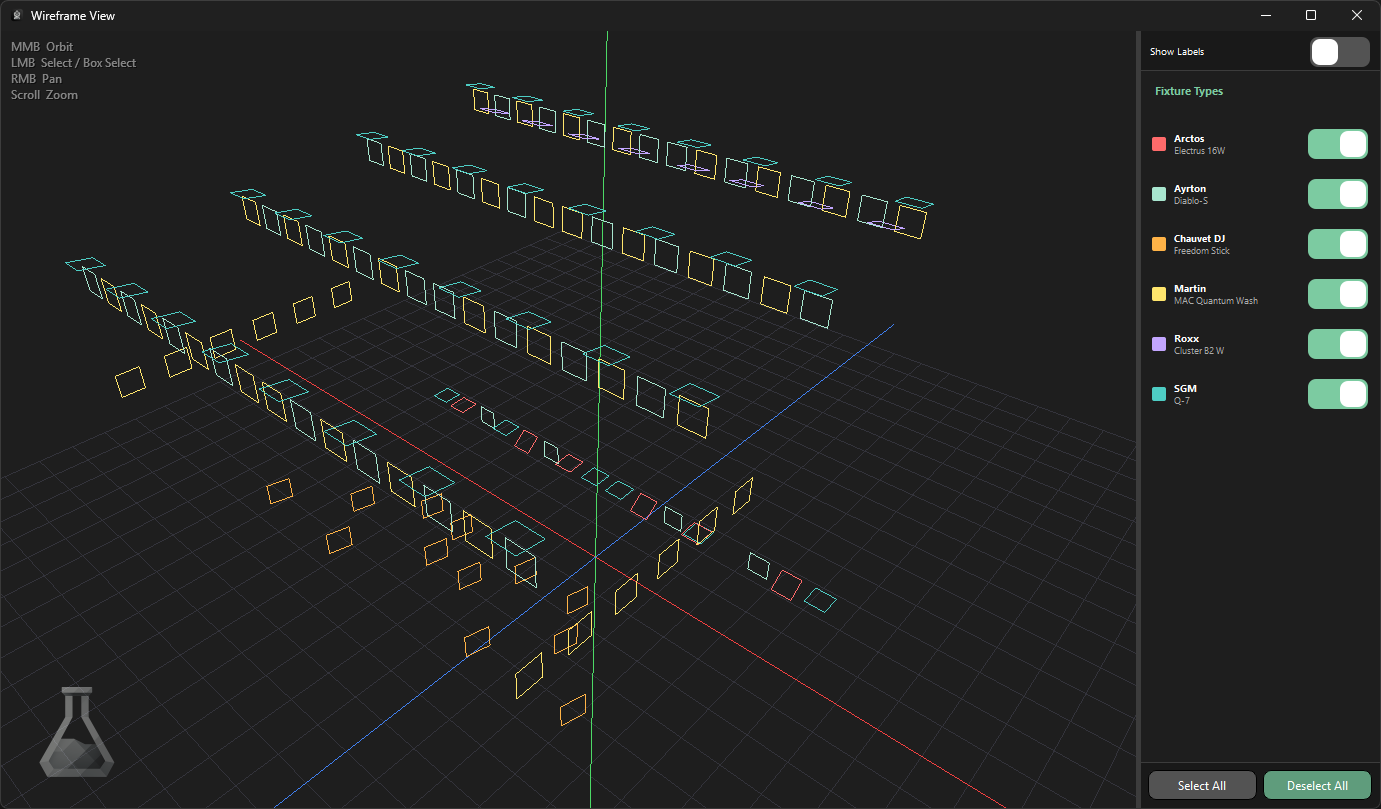
The View Wireframe window allows you to check the MVR to make sure all of the fixtures you are expecting are present and in the correct positions before importing.
Fixture Information Off
By default, fixture information is hidden.
Fixture Information On
This can be enabled to display fixture information alongside each fixture.
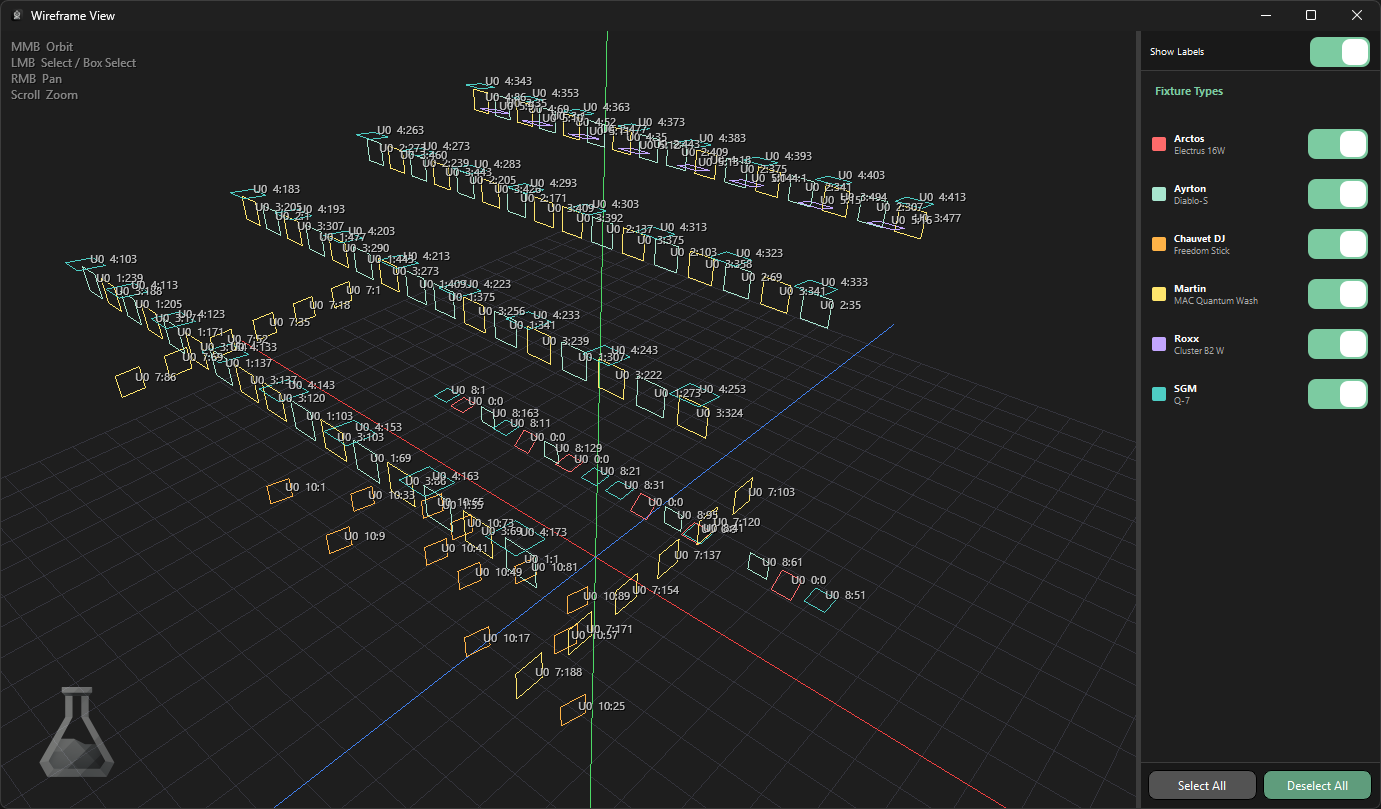
Hovering your mouse over a fixture will display all of its information, including Name, Unit Number, Universe, Address, Fixture Type and Fixture Mode.
Fixture Type Visibility
Each fixture type found in the MVR file is listed on the right, with a toggle to show or hide it in the wireframe view. Select All and Deselect All toggle every fixture type at once.
Selecting Fixtures
Click a fixture to select it, Ctrl/Cmd-click to add or remove additional fixtures from the selection, or click and drag to lasso-select multiple fixtures at once.
Selection ties in with the View Data window — selected fixtures are highlighted there too.