MVR Fixture Importer
Overview
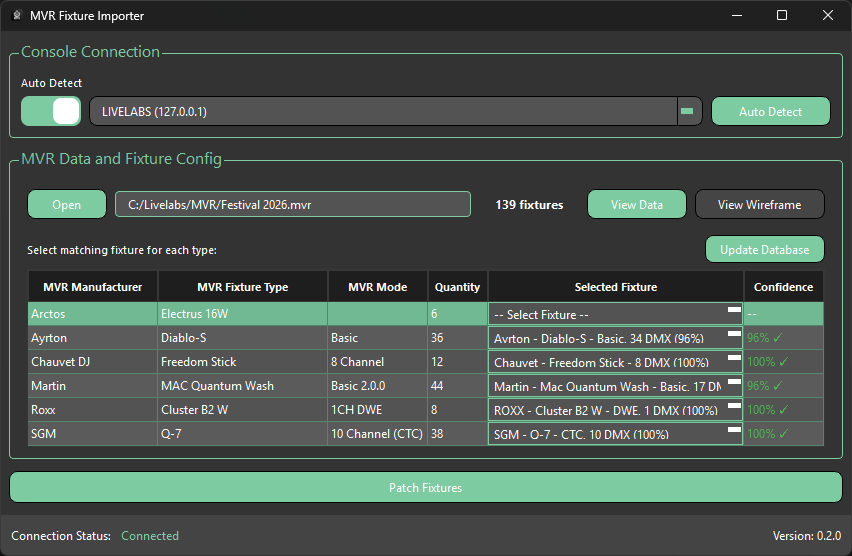
MVR Fixture Importer is a tool for importing MVR (My Virtual Rig) files into Avolites Titan consoles. The application parses MVR and GDTF fixture data, allowing users to extract and map fixture information for use in their Titan showfiles.
When updating the internal visualiser, MVR Fixture Importer will never save to or overwrite your original showfile — it always saves a copy. This allows you to revert to the state before the internal visualiser was updated if needed.
Only positional and rotational coordinates and values in the showfile are ever changed — no other showfile data is modified. MVR Fixture Importer will never touch cues, cuelists, shapes, or anything outside of Groups and Fixtures.
Typical workflow
- Connect MVR Fixture Importer to your Titan console
- Click Open MVR to load your MVR file
- Review the fixture data in the MVR Data & Fixture Config section — fixtures are matched to the Titan database automatically as soon as the file loads
- Adjust any unmatched fixtures manually
- Click Patch Fixtures to open the Patch Options window
- Choose your group creation and halo options, then press Patch
- Once patching has completed, a Patch Report window will open — use this to see if fixtures successfully patched, were skipped, or failed
- Open the internal Capture Visualiser and Capture Visualiser Settings windows to initialise them
Before saving, it is important to initialise the internal Capture Visualiser. You can do this by simply opening the Capture Visualiser and Capture Visualiser Settings windows in Titan.
- Save your Titan showfile
- Click Patch Fixtures again to open the Patch Options window
- Press Update Internal Visualiser to update fixture positions in the showfile
- Select your Titan showfile
- Press Update All from MVR
- Press Save to Showfile
- Open the new showfile with the MVR Positions prefix in Titan
- Close MVR Fixture Importer and program!