Store
Store Steps
Before the palette-slot picker opens, the Store Steps window asks how many steps you want to record.

By default this is set to 1. Setting it higher — for example 8 — uses the current shape settings to generate that many equally spaced shapes across the 360° phase, which can then be stored as that many position palettes for use as keyframes in shapes or chases. This lets you create symmetrical position effects by having Position Generator generate and store them as a set of palettes in one pass.
Store Window
Once the number of steps has been confirmed, the Store window opens. This shows all of the used position palette slots in the showfile.
The Store window operates very similarly to the Group and Palette selection windows, however it works in the opposite way — instead of selecting a populated slot, you must select an empty one. On the left are pages 1 through 12, and on the right are the palette slots for the selected page.
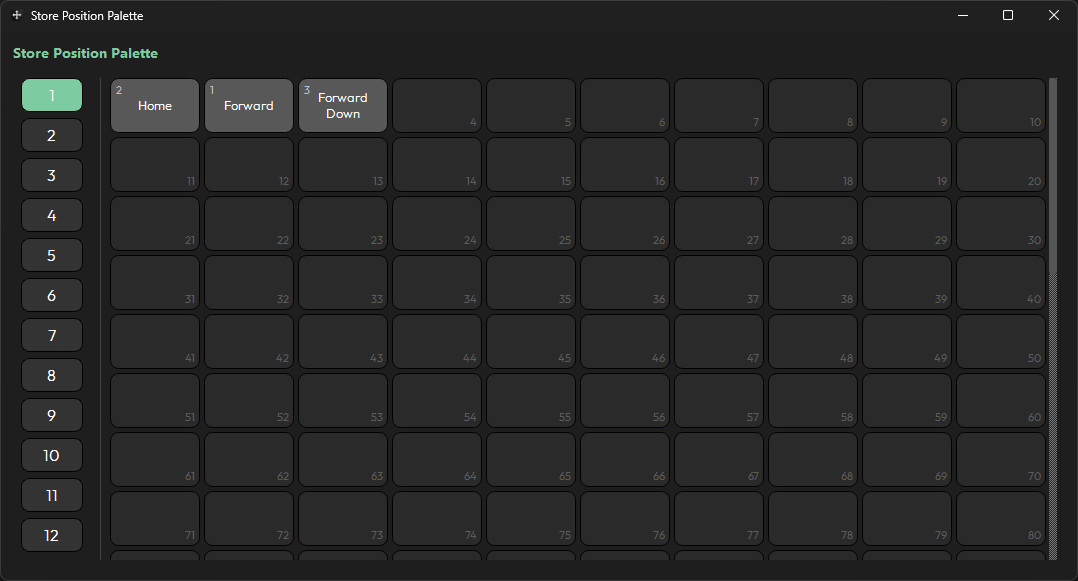
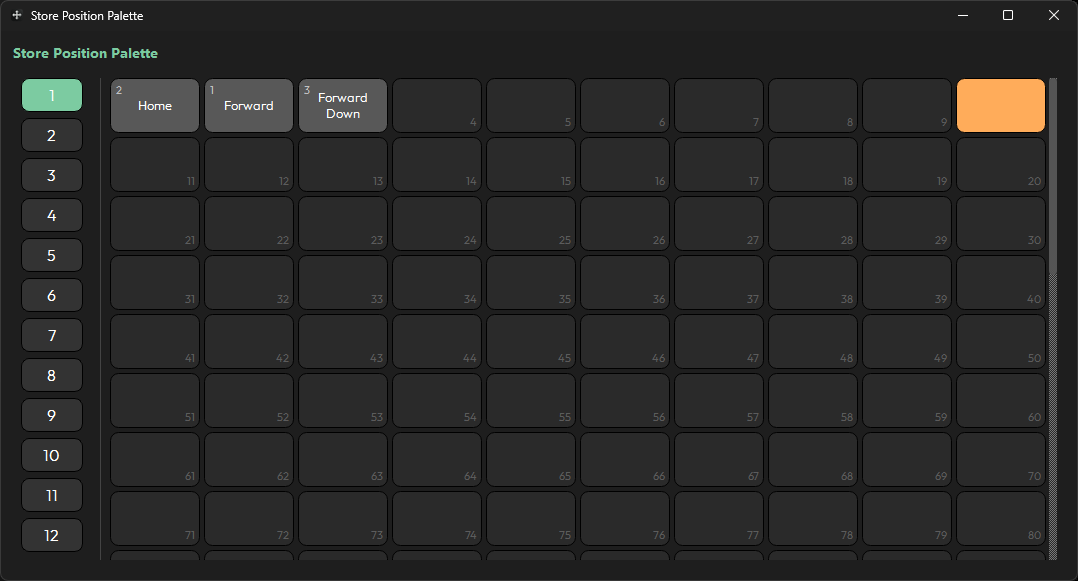
When storing, you must select an empty slot. On the first click it will highlight in orange — this does not yet mean it is selected, but it is queued for selection. To confirm it as the destination slot, click it again.
The image below shows what the Store window looks like with a palette slot selected, with only 1 step chosen in the Store Steps window.
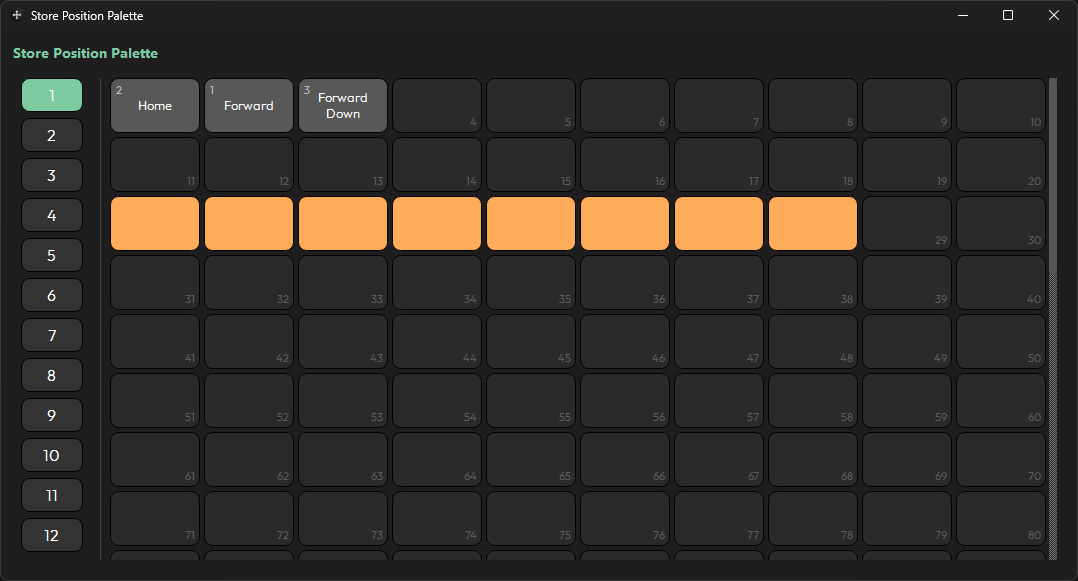
The image below shows what it would look like if 8 steps were selected instead. The window displays the number of palette slots required based on the number of steps chosen. If the selected range of steps would collide with an existing populated palette slot, those slots are shown in red and cannot be used — a slot must be chosen that has enough free slots available after it to fit the full step count.
Set Legend Window
Once a valid palette slot has been selected, the Set Legend window opens. This is where you can set the legend of your palette.

The user number is automatically assigned.
If more than 1 step was chosen in the Store Steps window, each stored palette's legend will have an x/y suffix added automatically, e.g. SymCircle 1/8, SymCircle 2/8, and so on. See Fig B in Example below.
If you press Cancel, the store will be aborted. The position data will still be held by the console, so you can go through the store process again or generate a new shape. Pressing Confirm will complete the palette store.
Example
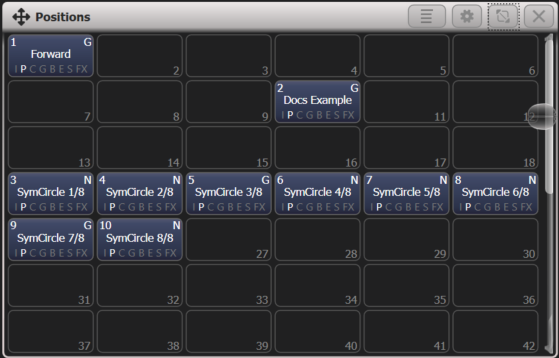
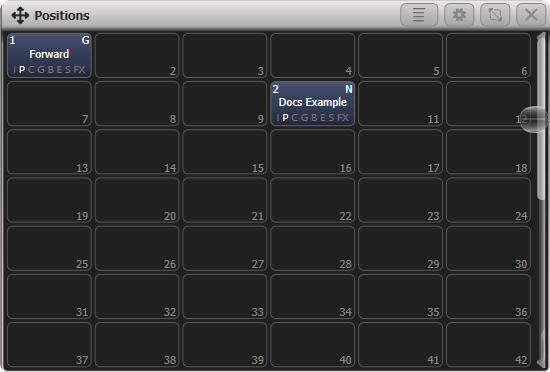
Below is an example of a stored palette with its legend set — this is the palette created earlier in this page using Position Generator.
Fig A
Below is an example of the result of an 8-step store — each palette is legended with the base name followed by its step number, e.g. SymCircle 1/8 through SymCircle 8/8.
Fig B