OSC Configuration
The OSC Configuration section contains the mapping table, where each row links an incoming OSC address to a destination on the connected Titan console.
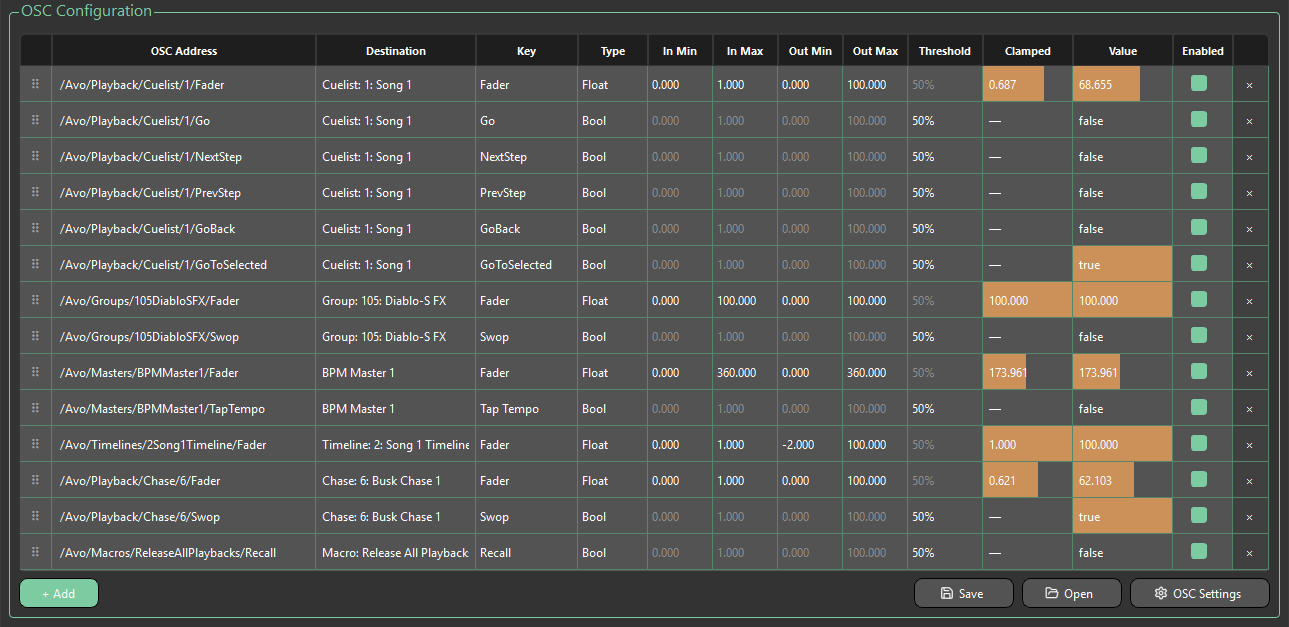
Adding a Mapping
Press + Add below the table and pick a destination from the menu:
| Category | Destinations |
|---|---|
| Playbacks | Cuelists, Cues, Chases |
| Timelines | Timelines running in the show |
| Groups | Groups in the show |
| Masters | Grand Master, Intensity Masters (Flash, Swop, Preset, Playback), BPM Masters, Rate Masters, Size Masters, Scene Master |
| Macros | Show Macros, User Macros, System Macros |
Destinations, playbacks, groups, and macros are read live from the connected console, so only items that actually exist in the current show are listed. If a destination's legend is changed on the console, refreshing updates the row's Destination text to match — the OSC address it's already using is left untouched.
See Default OSC Mappings for the full list of addresses generated per destination and key.
Table Columns
| Column | Description |
|---|---|
| OSC Address | Auto-generated from the destination and key when the row is added, e.g. /Avo/Playback/Cuelist/1/Go — see Default OSC Mappings for the full list. Fully editable — see Customising Addresses below. Duplicate/shared addresses are controlled by Duplicate Address Protection in OSC Settings. |
| Destination | The Titan target this row controls. |
| Key | The specific control on that destination — see below. |
| Type | How the incoming OSC value is interpreted: Float or Bool. Locked to Float for Fader rows and Bool for trigger-style keys — not user-selectable. |
| In Min / In Max | The expected range of the incoming OSC value. Unrestricted — set whatever range your OSC source actually sends. |
| Out Min / Out Max | The range the incoming value is scaled to before being sent to Titan. See Custom Ranges below. |
| Threshold | For Bool-type rows, the percentage crossing point that triggers the action. |
| Clamped | Shows the incoming value once clamped to the In Min/Max range. |
| Value | Shows the final value sent to Titan after scaling. |
| Enabled | Toggles whether the row responds to incoming OSC messages. |
Rows can be dragged by the handle on the left to reorder them, and deleted with the button on the right.
Customising Addresses
Every OSC Address field can be typed into directly — press Enter to commit a change. A custom address is kept even if the row's Key is changed afterwards, so a friendlier name won't get overwritten.
Addresses are protected from accidental duplication by default: typing an address that's already in use elsewhere in the table gets rejected (the field flashes red and reverts), and a newly added row that would generate a colliding address automatically gets a number appended to keep it unique. This protection can be turned off from OSC Settings if you deliberately want the same OSC address to drive more than one Titan destination at once — see OSC Settings.
Custom addresses are saved and restored with the mapping table, so they survive Save/Open just like everything else.
Custom Ranges
In Min/In Max accept any values — set them to match whatever range your OSC controller or software actually sends (not necessarily 0–1).
Out Min/Out Max control what gets sent to Titan, and for Fader rows the sensible maximum depends on the destination:
| Destination(s) | Out Max default | Out Max limit |
|---|---|---|
| Cuelist, Cue, Chase, Timeline, Group, Grand/Flash/Swop/Preset/Playback Master | 100 | 100 |
| BPM Masters | 360 | 600 |
| Rate Masters, Size Masters | 200 | 1000 |
| Everything else | 100 | Unrestricted |
Typing a value above the limit and pressing Enter flashes the field red and snaps it back to the maximum allowed.
Key Options
The available Key options depend on the destination type:
| Destination | Available Keys |
|---|---|
| Cuelist | Fader, Go, Pause, Play, NextStep, PrevStep, SnapBack, GoBack, GoToSelected, Connect, Disconnect |
| Cue | Fader, Flash, Swop |
| Chase | Fader, Flash, Swop, Pause, Play, Connect, Disconnect |
| Timeline | Fader, Stop, Play/Pause, Connect, Disconnect |
| Group | Fader, Swop |
| Grand Master | Fader, Flash, Enable, Disable |
| Flash / Swop / Preset / Playback / Rate / Size Master | Fader, Flash |
| BPM Master | Fader, Tap Tempo, Flash |
| Scene Master | Fader, Enter/Exit, Commit |
| Macro | Recall |
| Other playback destinations | Fader, Swop, Flash |
Each destination can only have one row per key — attempting to add a duplicate flashes the row red and reverts to the previous key.
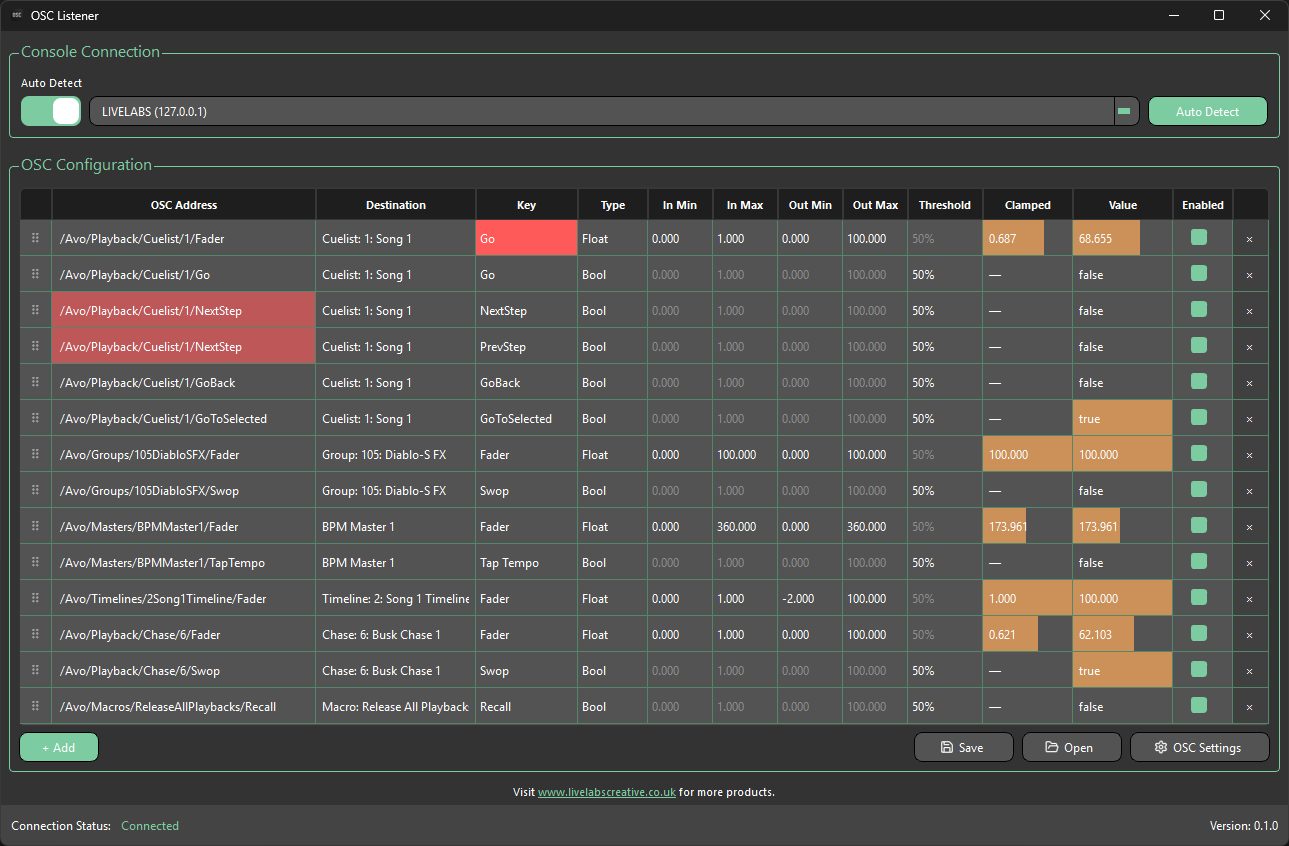
The Key is shown in red because it clashes with the existing key already used for this element. See Duplicate Address Protection to see why the addresses are also shown in red.
Right-click the drag handle on a row with a destination set to Create All Keys, which adds the remaining keys for that destination in one go.
Right-click a row with an OSC address set to Copy OSC Address, useful for pasting into the OSC-sending application or device.
Buttons
| Button | Description |
|---|---|
| + Add | Opens the destination menu to add a new mapping row. Enabled once connected to a console. |
| Save | Saves the current set of mappings to an .osclis file. |
| Open | Loads a previously saved .osclis mapping file. |
| OSC Settings | Opens the OSC Settings dialog — see OSC Settings. |
Use Save and Open below the table to store the current set of mappings as an .osclis file and reload it later. Custom addresses and every other setting on each row are preserved.