Getting Started with MTC Listener
Setting Up MTC Listener
- Connect to your Titan console
- Select the MIDI input device that will provide the timecode signal
- Select the target timecode clock in Titan
- Configure Post Roll if needed
The selected timecode clock must be set to Internal in Titan.
Once set up, MTC Listener will synchronize incoming MIDI Time Code with the selected timecode clock in Titan.
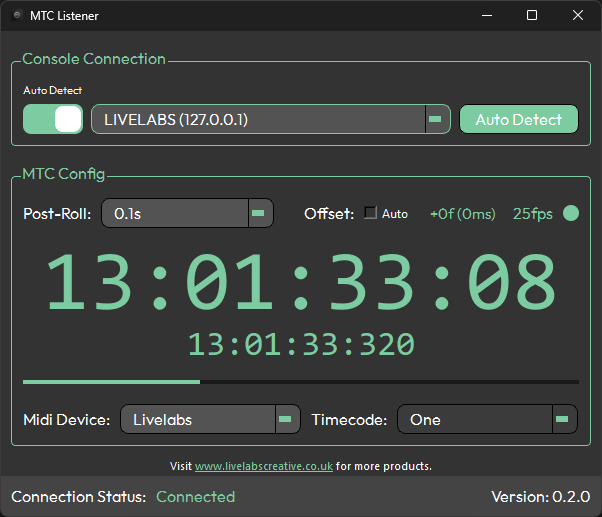
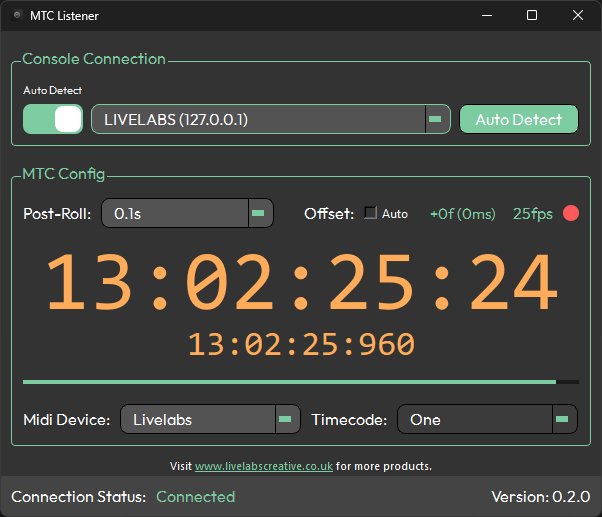
This is what MTC Listener looks like while actively receiving timecode. If the signal stops or drops, the display changes to indicate this:
For the best results in a PC-only setup, run MTC Listener on the same machine as Titan One or Titan Simulator. This eliminates network latency between the app and the console.
If RTP MIDI is being used to receive timecode over the network, run MTC Listener on the machine producing the timecode. MTC Listener will then forward it to Titan, which is lighter on the network than passing raw MIDI messages across to a separate machine.
There are known MIDI issues on Windows 11. See System Requirements for details and workarounds.
For information on keeping the app up to date, see Updating.